
WooCommerce security hardening involves applying specific, layers-based protections to your WordPress environment to prevent unauthorized access and data breaches. Because WooCommerce operates on the WordPress ecosystem, your store is susceptible to common automated attacks targeting vulnerabilities in plugins, themes, or exposed login pages. By implementing a strict defense strategy, you reduce the surface area available to attackers and ensure that your customer data remains private and your transaction processes stay active.
Why is WooCommerce security hardening necessary?
Online retailers often store sensitive information, including customer addresses, order histories, and in some cases, partially masked payment details. If an attacker gains entry to your administrative dashboard, they can redirect traffic, inject malicious scripts, or extract customer databases. Security hardening is not a one-time task but a series of adjustments to the default WordPress settings that restrict how users interact with your site. Most attacks on WooCommerce stores are automated, meaning they scan thousands of sites looking for common misconfigurations like default table prefixes or open login paths. By changing these standard settings, you make your store a difficult target, encouraging automated bots to move on to easier sites.
Essential steps for basic WordPress protection
Before adjusting WooCommerce settings, you must address the foundation of your site. WordPress defaults are often known by attackers, so changing them is the first step in a professional security audit. Start by enforcing strong password policies for all users, especially those with Administrator or Shop Manager roles. In a typical account, users often reuse passwords from other platforms, which makes them vulnerable if those platforms suffer a breach. You should also update your security keys in the wp-config.php file periodically to invalidate existing sessions. This forces a re-authentication for every user, which clears out any hidden sessions that might have been hijacked by a malicious actor.
- Enforce two-factor authentication (2FA) for all administrative accounts to prevent credential stuffing.
- Change the default ‘admin’ username to a unique, non-obvious account name.
- Disable file editing from the WordPress dashboard to prevent attackers from modifying theme or plugin code.
- Implement a custom login URL to hide the wp-admin path from automated scanners.
- Limit login attempts to prevent brute-force attacks from cycling through password combinations.
How to manage plugin and theme vulnerabilities
Plugins and themes are the primary entry points for attacks on most WordPress sites. Every additional piece of software you install adds a new potential vulnerability to your store. You should perform a monthly audit of your installed plugins and remove any that are inactive or no longer supported by the developer. It is also critical to set up an automated update schedule for all essential plugins. If a plugin developer releases a patch for a security flaw, you must apply that update immediately. Attackers often read the changelogs of popular plugins to identify which sites are still running older, vulnerable versions.
What is the role of database security?
The database contains your most valuable assets, including customer records and product configurations. By default, WordPress uses ‘wp_’ as the table prefix, which makes it easy for automated scripts to target your database tables during an SQL injection attempt. Changing this prefix to a unique, random string adds a layer of obscurity that slows down automated discovery. Furthermore, ensure that your database user only has the permissions required to run the site. It should not have full administrative privileges over the entire server. Regularly backing up your database to an off-site location is also mandatory, as it ensures you can restore your store if the worst happens and your files are corrupted.
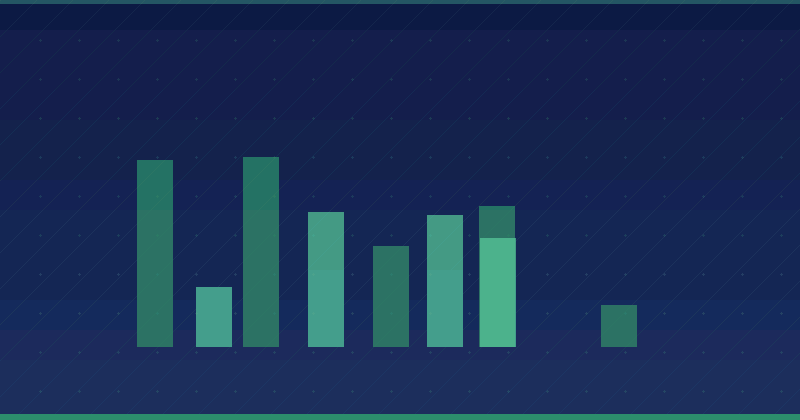
| Security Layer | Difficulty Level | Impact on Defense |
|---|---|---|
| Strong Passwords | Low | High |
| Database Prefix Change | Medium | Medium |
| File Editing Disabled | Low | High |
How Alien Road applies security hardening
At Alien Road, we approach WooCommerce security by treating each store as a unique entity with specific risk factors. During a typical engagement, we begin by performing a deep audit of the server configuration to ensure that the environment is isolated and that directories are not writable by the public. We then review the plugin ecosystem to ensure that no redundant code is running in the background. For our clients, we deploy a staged update process where we test plugin compatibility in a sandbox environment before pushing changes to the live site. This ensures that security patches do not break the store’s functionality while keeping the defense layers current. We also monitor for unusual traffic patterns that might indicate a botnet attempting a distributed attack, allowing us to adjust firewall rules in real-time.
How can you monitor for ongoing threats?
Security is an active process that requires constant observation of your site logs. You should regularly check your access and error logs to identify repeated failed login attempts or unusual requests to specific file paths. Most hosting providers offer access to these logs through a control panel like cPanel or Plesk. If you notice a specific IP address attempting to access your login page hundreds of times, use your firewall settings to block that IP permanently. This proactive monitoring allows you to stop an attack before it succeeds, rather than scrambling to clean up the store after a breach has occurred.
- Review server access logs weekly for suspicious activity or high-frequency requests.
- Use a security plugin to scan for core file changes and alert you to unauthorized modifications.
- Set up email notifications for any login attempts to administrator accounts.
- Monitor your SSL certificate status to ensure that all data transmission remains encrypted.
- Check your site’s reputation using search engine tools to see if it has been flagged for malicious content.
Next steps for this week
Start your hardening process this week by reviewing your user list and removing any accounts that are no longer active. Once you have cleaned up your user permissions, audit your current plugins and delete any that you have not updated in the last six months. These two actions alone will significantly reduce the surface area available to potential attackers. If you do not have a backup strategy in place, configure an automated off-site backup today to ensure your store data is protected against unexpected events. Taking these small, deliberate steps will significantly improve your store’s posture and keep your operations moving forward securely.
Frequently Asked Questions
Do I need a security plugin for WooCommerce?
While not strictly required by the WordPress core, a security plugin acts as a central hub for your monitoring, firewall, and file integrity needs. It automates tasks that would otherwise require manual configuration in server files, making it a reliable way to manage your store’s defense layers without needing deep technical knowledge of server administration.
How often should I change my WordPress security keys?
It is a good practice to regenerate your security keys whenever you suspect a compromise or once every few months as part of a routine maintenance schedule. Changing these keys invalidates existing cookies and forces all logged-in users to re-authenticate, which is an effective way to clear out any unauthorized sessions that might have been created.
Can a strong hosting provider handle security for me?
A high-quality hosting provider manages server-level security, such as firewalls and basic malware detection, but they cannot secure the application layer. You are still responsible for keeping your WordPress core, themes, and plugins updated. A host provides the infrastructure, but the responsibility for the site’s internal configuration and user access management remains with you.
What should I do if my store is hacked?
If your store is compromised, immediately restore your site from a clean, known-good backup. After restoration, change all administrator passwords, update every plugin and theme to the latest version, and inspect your database for any hidden user accounts or malicious injections. If you are unsure how to clean the files, consult with a security professional to prevent further data loss.