
Google Search Console errors are technical indicators that inform webmasters about specific problems preventing search engine bots from accessing or indexing web pages properly. These notifications appear within the platform’s Indexing section and require systematic troubleshooting to ensure a site maintains its visibility in search results. Promptly addressing these issues helps maintain the health of a digital presence and prevents long-term traffic loss from technical barriers.
What are the most common Google Search Console errors?
The Index Coverage report in Search Console identifies which pages are indexed and which are not. This report is the primary starting point for any technical audit, as it categorizes every URL Google has encountered on your site. Errors such as ‘Server error (5xx)’ or ‘Redirect error’ indicate issues that prevent Google from crawling your pages. These are critical because if a bot cannot crawl, it cannot index, and if it cannot index, your content will never appear to users.
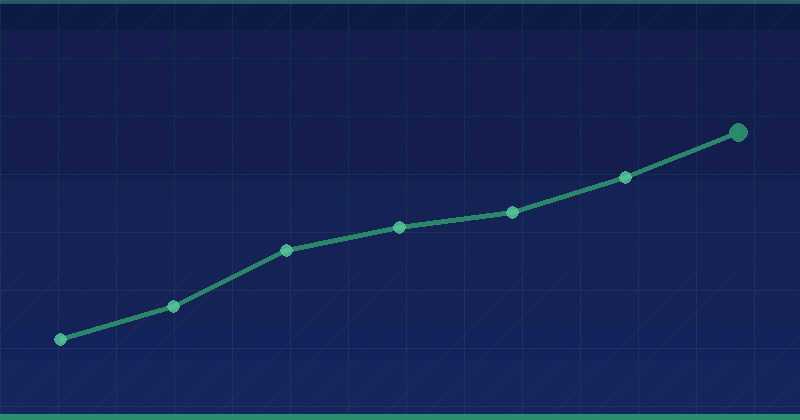
In a typical account, you will see four main status categories: Error, Valid with warnings, Valid, and Excluded. While ‘Excluded’ is often normal for things like feed URLs or filtered category pages, the ‘Error’ category demands immediate intervention. A common pattern is seeing a sudden spike in errors after a site migration or a major CMS update. Monitoring these trends daily allows you to catch technical regressions before they impact your organic revenue.
- Server errors (5xx) that suggest the hosting environment is failing.
- Redirect errors where a URL points to a broken or looping destination.
- Submitted URL marked ‘noindex’ which creates a conflict in your SEO strategy.
- 404 Not Found errors where Google expects a page to exist but finds nothing.
- Soft 404 errors where a page looks empty but sends a success code.
How do you fix Server Error (5xx) issues?
A 5xx error means Googlebot reached your server but the server could not fulfill the request. This often happens during periods of high traffic or when a specific script on the page consumes too much memory. For example, a Shopify store running complex third-party apps might experience temporary timeouts if those apps slow down the page generation process. When Google encounters these repeatedly, it may reduce your crawl rate to avoid crashing your site.
To resolve these, start by checking your server logs or contacting your hosting provider to see if there were any outages at the time of the crawl. In a typical WordPress setup, this might be caused by a plugin conflict or a database connection error. If the error is intermittent, it might indicate that your hosting plan lacks the resources to handle simultaneous crawls from search engine bots. Upgrading your CPU or RAM limits often resolves persistent 5xx issues.

Another step is to use the URL Inspection tool in Search Console. Enter the problematic URL and click ‘Test Live URL’ to see if the server error is still present. If the live test passes, the issue might have been a temporary glitch. If it fails, you must examine your backend code or server configuration. Look for long-running PHP scripts or database queries that might be timing out before the page finishes loading.
Why does Google report Submitted URL marked ‘noindex’?
This specific error occurs when you have included a URL in your XML sitemap, but the page itself contains a ‘noindex’ instruction. This sends a contradictory signal to Google. By putting it in the sitemap, you are saying ‘please index this,’ but the page tag says ‘stay away.’ Search engines generally respect the ‘noindex’ tag, but they flag the contradiction as an error because it usually indicates a configuration mistake.
Check the HTML source code of the affected page for a tag like . Alternatively, check the HTTP response headers for an ‘X-Robots-Tag: noindex’. If you want the page to be indexed, remove these tags immediately. If you intentionally want the page hidden from search, remove that URL from your XML sitemap. This alignment ensures that your sitemap only contains high-quality, indexable landing pages.
Resolving Redirect Errors and Loops
Redirect errors occur when Googlebot gets stuck in a cycle or the redirect chain is too long for the bot to follow. Usually, Google will follow up to five redirects before giving up. If Page A redirects to Page B, and Page B redirects back to Page A, you have created a redirect loop. This prevents the bot from ever reaching the actual content, leading to a failure in the indexing process.
A common cause of this is misconfigured .htaccess files or SEO plugins that automatically create redirects when a URL slug is changed. To troubleshoot, use a redirect checker tool to see the full path of the URL. Ensure that every redirect is a simple, one-step jump from the old URL to the new, permanent (301) destination. Additionally, check for internal links that might be pointing to these redirecting URLs and update them to point directly to the final destination.
- Identify the redirect chain length using the URL Inspection tool.
- Check for circular references where two pages point to each other.
- Ensure all redirects use the 301 Permanent status code instead of 302 Temporary.
- Verify that the final destination page is actually returning a 200 OK status.
- Update internal navigation menus to remove unnecessary redirect jumps.
Fixing 404 Not Found and Soft 404 Errors
A standard 404 error is not always a bad thing. If a page has been deleted and there is no relevant replacement, a 404 is the correct response. However, if that page was a high-traffic destination or has many backlinks, you should use a 301 redirect to send users to the next most relevant page. Google Search Console flags these so you can decide if the loss of that page was intentional or a mistake.
Soft 404 errors are more confusing. This happens when a page returns a 200 OK success code to the browser, but Google thinks the page should be a 404. This often occurs on thin content pages, empty search results pages, or pages that have very little text. If a product is out of stock and the page now says ‘Product not found’ but still loads successfully, Google may classify it as a soft 404. To fix this, either add meaningful content to the page or ensure it returns a true 404 or 410 status code.
How to handle Crawled – currently not indexed?
This status means Google has visited the page but decided not to add it to the search index. It is not necessarily an ‘error’ in the technical sense, but it is a performance issue. Usually, this happens because Google does not find the content valuable enough or unique enough to justify the space in its index. In a typical account, you might see this for auto-generated tag pages or duplicate versions of product descriptions.
To improve these pages, focus on increasing content quality and internal linking. If a page is important, make sure it is linked from your homepage or main navigation. Google uses internal link volume as a signal of importance. If a page is buried deep in the site architecture and has no unique value compared to other pages, the bot will likely ignore it. Consider merging these low-value pages into a single, more comprehensive resource.
Addressing Mobile Usability and Core Web Vitals
Beyond indexing, Search Console monitors how users experience your site. Mobile usability errors like ‘Content wider than screen’ or ‘Clickable elements too close together’ can hinder your rankings in mobile search. These are often caused by fixed-width elements in your CSS or font sizes that are too small for comfortable reading. Ensure your viewport meta tag is correctly set and that all buttons have at least a 48×48 pixel touch target.
Core Web Vitals are another critical area. Google tracks metrics like Largest Contentful Paint (LCP), which should be under 2.5 seconds for a good rating. If your Search Console shows LCP issues, it usually means your images are too large or your server response time is slow. Use the ‘Experience’ section in the sidebar to identify which groups of URLs are failing these thresholds. Solving these often requires optimizing image formats to WebP and implementing efficient caching strategies.
Priority actions for your search console this week
Start by opening the Indexing > Pages report and filtering for ‘Error’ status. Address the 5xx server issues first, as these indicate your infrastructure is struggling. Once the server is stable, move to fixing redirect loops and contradiction errors in your sitemap. After applying fixes, always use the ‘Validate Fix’ button in Search Console. This tells Google to prioritize recrawling those specific URLs to confirm the problem is gone. Establish a weekly routine to check these reports so that technical debt does not accumulate and harm your search performance.
Keep reading: SEO (Search Engine Optimization) · SEO