
Improving your site speed starts with understanding that WordPress performance depends on how efficiently your server processes requests and delivers assets to the visitor. WordPress.org recommends caching, optimizing database queries, and using a lightweight theme as the primary pillars for improving load times. By focusing on these fundamental areas, you can reduce the time it takes for a page to become interactive and ensure that your visitors have a smooth experience every time they access your content through various devices.
Why does your choice of theme matter for site speed?
The theme you select acts as the foundation for your website design and functionality. Many themes come pre-packed with heavy scripts, sliders, and unnecessary animations that increase the overall file size of your pages. When you choose a lightweight theme, you ensure that the code is streamlined and only loads what is absolutely necessary for the page to function. A heavy theme often forces the browser to download massive amounts of CSS and JavaScript files before the main content can even begin to render on the screen.
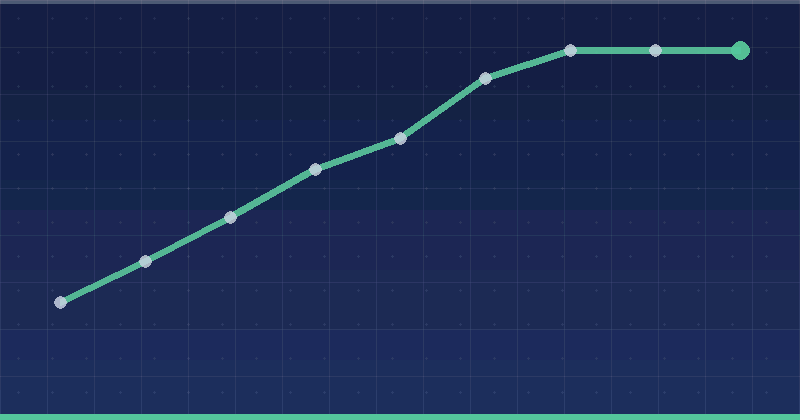
In a typical account, switching from a multi-purpose theme with dozens of built-in features to a lightweight, performance-focused theme results in an immediate reduction in total page weight. You should look for themes that offer a modular approach, allowing you to disable features or sections that your specific site does not require. When evaluating a potential theme, look at the demo sites and check how many external requests are made during a standard page load. If the demo itself feels sluggish on a fast connection, your site will likely face similar performance hurdles once you add your own content and plugins.
How can caching improve your WordPress site?
Caching is one of the most effective methods to speed up WordPress because it reduces the workload on your server by storing generated pages as static files. Instead of executing PHP and querying the database for every single visitor, the server simply serves the pre-generated HTML file. This significantly decreases the time to first byte, which is a key metric for how quickly your server responds to a user request. Without caching, every visitor forces your server to rebuild the entire page from scratch, consuming memory and processing power that could be used for other tasks.
To implement caching, you can use popular plugins that manage the creation and expiration of these files automatically. These tools allow you to configure settings for page caching, browser caching, and object caching. Browser caching tells the user’s local device to store certain assets like images and CSS files for a specific period, so they do not need to be downloaded again on subsequent visits. Configuring these settings correctly is a standard procedure in Alien Road projects to ensure that return visitors experience near-instant load times.

What is the role of database optimization?
Over time, your WordPress database accumulates a large amount of clutter that can slow down queries and hinder general performance. WordPress.org recommends optimizing database queries to ensure that your site can retrieve information quickly. Common issues include post revisions, trashed items, auto-drafts, and orphaned metadata that pile up in your tables. By cleaning these out, you reduce the size of the database and make it easier for your server to search through information when a user requests a page.
You can perform database optimization using maintenance plugins or by using the WP-CLI tool if you are comfortable with command-line operations. A common pattern is to set a limit on the number of post revisions WordPress stores for each post or page. This simple change prevents your database from growing excessively every time you hit save. Regularly clearing out spam comments and expired transients is another straightforward way to keep your database lean and responsive, ensuring that your site remains fast as it grows.
Practical steps to optimize media files
Images often make up the bulk of a webpage’s weight, making them a primary target for speed improvements. You should always compress your images before uploading them, or use a plugin that automates this process upon upload. Many image optimization plugins also offer support for next-gen formats like WebP, which provide better compression ratios than traditional JPEG or PNG files. By keeping your image sizes small, you ensure that they load quickly even on mobile networks with limited bandwidth.
- Resize images to the actual dimensions they appear on your site to prevent unnecessary browser scaling.
- Use lazy loading to defer the loading of images until they are about to enter the viewport.
- Implement a Content Delivery Network (CDN) to serve images from locations closer to your users.
- Remove metadata from images to further reduce file size without losing visible quality.
How to manage plugins for better performance?
Plugins add functionality to your site, but each one introduces its own set of scripts and styles that need to be loaded by the browser. If you have too many plugins, or if you use plugins that are poorly coded, your site speed will inevitably suffer. A good rule is to audit your plugins every few months and remove any that are no longer being used. If a plugin provides a feature you only need once, consider if there is a way to achieve the same result without keeping the plugin active on your server.
When choosing a plugin, prioritize those that are regularly updated and have positive feedback regarding their performance impact. Some plugins are designed to load their assets only on the specific pages where they are needed, rather than loading them globally across every page on your site. This is a highly efficient way to manage resources. If you find that a specific plugin is causing a major performance bottleneck, you should look for a lighter alternative or consider a custom solution that performs the specific task without the overhead of a large framework.
Managing external scripts and third-party content
External scripts such as tracking pixels, social media feeds, and advertisement widgets can significantly impact your load times. Each external request requires a separate connection to a remote server, which adds latency to the page rendering process. You should limit the number of third-party services you use and prioritize those that are essential to your business goals. For scripts that are not critical for the initial page load, consider using techniques like asynchronous loading or deferring their execution until the main content has finished rendering.
If you are using Google Analytics, for example, consider hosting the tracking script locally if your hosting environment allows it. This gives you more control over the caching headers and reduces the number of external domains your visitors’ browsers need to look up. Similarly, if you display social media feeds, try to use a static placeholder that only fetches the live content when a user clicks on it. These small adjustments prevent external dependencies from becoming a bottleneck for your primary site performance.
Where to start this week
Start by running a performance audit using standard tools to identify which assets are causing the most delay on your site. Once you have a clear picture of the bottlenecks, prioritize the implementation of a caching solution as your first action. After caching is in place, move on to database cleanup to remove unnecessary clutter and then audit your plugin list to remove any unused tools. By tackling these items one by one, you will see a measurable difference in how quickly your site serves content to your audience.
- Audit your current plugins and deactivate any that do not serve an active purpose.
- Install a caching plugin and verify that it is correctly configured for your environment.
- Review your image sizes and ensure that large high-resolution files are optimized for the web.
- Check your hosting account settings to see if there are server-side caching options available.
- Limit the number of post revisions stored in your database to reduce data bloat.
Remember that performance is an ongoing process rather than a one-time setup. As you add new content and features, keep an eye on how they impact your load times and adjust your configuration accordingly. By sticking to the basics of caching, database maintenance, and choosing efficient themes, you maintain a fast and reliable experience for every visitor. Consistency in these small updates ensures your site remains competitive and accessible, regardless of how much traffic you receive or what kind of content you publish.
Keep reading: Web Design and Development · Web Design