Miércoles, 12 de diciembre de 2012
En Google utilizamos cada vez más datos estructurados para ofrecer resultados de búsqueda mejorados, como
fragmentos enriquecidos
y
calendarios de eventos, que ayudan a los usuarios a encontrar tu contenido. Hasta ahora, marcar el código HTML de tu sitio ha sido la única forma de indicar datos estructurados a Google. Sin embargo, reconocemos que el marcado puede ser difícil de implementar para algunos sitios web.

Hoy ofrecemos a los webmasters una alternativa más sencilla: Data Highlighter. En su lanzamiento inicial, está disponible solo en inglés y para datos estructurados sobre eventos, como conciertos, eventos deportivos, exposiciones, espectáculos y festivales.
Poneremos Data Highlighter a disposición para más idiomas y tipos de datos en los próximos meses.
Actualización del 19 de febrero de 2013: El marcado estructurado de Data Highlighter para eventos está disponible en todos los idiomas en Webmaster Tools.
Actualización 2:
Puedes ver la
lista completa de esquemas compatibles con Data Highlighter.
. Data Highlighter es una herramienta de apuntar y hacer clic que puede ser utilizada por cualquier persona autorizada para tu sitio en Google Webmaster Tools. No se requieren cambios en el código HTML. En su lugar, simplemente usas el ratón para resaltar y “etiquetar” cada pieza clave de datos en una página de eventos típica de tu sitio web:
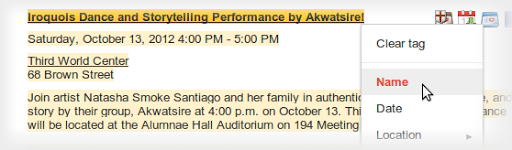
Si tu página muestra varios eventos en un formato coherente, Data Highlighter “aprenderá” ese formato a medida que apliques etiquetas y ayudará a acelerar tu trabajo sugiriendo automáticamente etiquetas adicionales. Del mismo modo, si tienes muchas páginas de eventos en un formato coherente, Data Highlighter te guiará a través de un proceso de etiquetado de algunas páginas de ejemplo para que pueda aprender sobre sus variaciones de formato. Por lo general, de 5 a 10 páginas etiquetadas manualmente son suficientes para que nuestros sofisticados algoritmos de aprendizaje automático comprendan las otras páginas similares de tu sitio.
Cuando termines, puedes revisar una muestra de todos los datos de eventos que Data Highlighter comprende ahora. Si es correcto, haz clic en “Publicar”.
A partir de ese momento, a medida que Google rastree tu sitio, reconocerá tus listados de eventos más recientes y los hará elegibles para resultados de búsqueda mejorados. Puedes inspeccionar los datos rastreados en el
Panel de Datos Estructurados, y despublicar en cualquier momento si no estás satisfecho con los resultados.
Aquí tienes un breve vídeo que explica cómo funciona el proceso:
Para empezar a usar Data Highlighter, visita
Webmaster Tools, selecciona tu sitio, haz clic en el enlace “Optimización” en la barra lateral izquierda y haz clic en “Data Highlighter”.
Si tienes alguna pregunta, lee nuestro
artículo del Centro de Ayuda
o pregúntanos en el
Foro de Ayuda para Webmasters. ¡Feliz marcado!
Cómo lo aplicamos
Google announcements age. We keep this post here for the record, and we note for clients whether the behaviour it describes still applies today or has since been superseded.
Servicios relacionados