Friday, June 29, 2012
Many organizations have multiple presences on the web. For example, Webmaster Tools lives at
www.google.com/webmasters, but it also has a
Twitter account and a
YouTube channel.
It’s important that visitors to these other properties have confidence that they are actually
associated with the Webmaster Tools site. However to date it has been challenging for webmasters
to manage which users can take actions on behalf of their site in different services.
Today we’re happy to announce a new feature in Webmaster Tools that allows webmasters to add
“associates”—trusted users who can act on behalf of your site in other Google products.
Unlike site owners and users, associates can’t view site data or take any site actions in
Webmaster Tools, but they are authorized to perform specific tasks in other products.
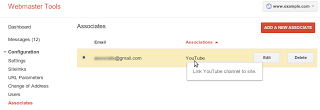
For this initial launch, members of YouTube’s partner program that have created a YouTube channel
for their site can now link the two together. By doing this, your YouTube channel will be
displayed as the “official channel” for your website.
Management within Webmaster Tools
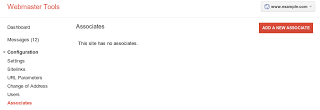
To add or change associates:
- On the Webmaster Tools home page, click the site you want.
- Under Configuration, click Associates.
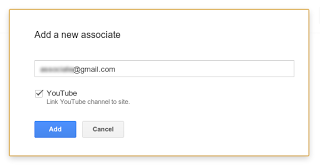
- Click Add a new associate.
- In the text box, type the email address of the person you want to add.
- Select the type of association you want.
- Click Add.
Management within YouTube
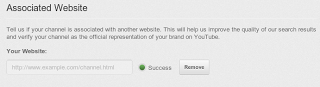
It’s also possible for users to request association from a site’s webmaster.
- Log in to your YouTube partner account.
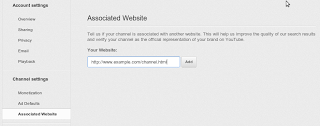
- Click on the user menu and choose Settings > Associated Website.
- Fill in the page you would like to associate your channel with.
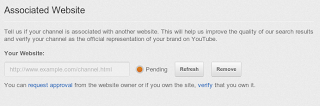
- Click Add. If you’re a verified owner of the site, you’re done. But if someone else in your
organization manages the website, the association will be marked Pending. The owner receives a
notification with an option to approve or deny the request.
- After approval is granted, navigate back to this page and click Refresh to complete the
association.
Through associates, webmasters can easily and safely allow others to associate their website with
YouTube channels. We plan to support integration with additional Google products in the future.
If you have more questions, please see the
Help with Associates
article or visit our
webmaster help forum.
How we apply this
Google announcements age. We keep this post here for the record, and we note for clients whether the behaviour it describes still applies today or has since been superseded.
Related services