Tuesday, April 17, 2007
As a site owner, you control what content of your site is indexed in search engines. The easiest
way to let search engines know what content you don’t want indexed is to use a
robots.txt file or robots meta tag.
But sometimes, you want to remove content that’s already been indexed. What’s the best way to do
that?
As always, the answer begins: it depends on the type of content that you want to remove. Our
webmaster help center
provides detailed information
about each situation. Once we recrawl that page, we’ll remove the content from our index
automatically. But if you’d like to expedite the removal rather than wait for the next crawl,
the way to do that has just gotten easier.
For sites that you’ve verified ownership for in your
Webmaster Tools
account, you’ll now see a new option under the Diagnostic tab called URL Removals. To get started,
simply click the URL Removals link, then New Removal Request. Choose the option that
matches the type of removal you’d like.
Individual URLs
Choose the Individual URLs option if you’d like to remove a URL or image. In order for the
URL to be eligible for removal, one of the following must be true:
- The URL must return a status code of either
404or410 - The URL must be blocked by the site’s
robots.txt file. - The URL must be blocked by a
robotsmetatag.

Once the URL is ready for removal, enter the URL and indicate whether it appears in our web
search results or image search results. Then click Add. You can add up to 100 URLs in a
single request. Once you’ve added all the URLs you would like removed, click
Submit Removal Request.

A directory

Choose this option if you’d like to remove all files and folders within a directory on your site.
For instance, if you request removal of https://www.example.com/myfolder,
this will remove all URLs that begin with that path, such as:
https://www.example.com/myfolderhttps://www.example.com/myfolder/page1.htmlhttps://www.example.com/myfolder/images/image.jpg
In order for a directory to be eligible for removal, you must block it using a robots.txt file.
For instance, for the example above, https://www.example.com/robots.txt could include
the following:
Your entire site
Choose this option only if you want to remove your entire site from the Google index. This
option will remove all subdirectories and files. Do not use this option to remove the non-preferred
version of your site’s URLs from being indexed. For instance, if you want all of your URLs indexed
using the www version, don’t use this tool to request removal of the non-www version. Instead,
specify the version you want indexed using the Preferred domain tool
(and do a
301 redirect
to the preferred version, if possible). To use this option, you must
block the site using a robots.txt file.
Cached copies
Choose this option to remove cached copies of pages in our index. You have two options for making
pages eligible for cache removal.
Using a meta noarchive tag and requesting expedited removal
If you don’t want the page cached at all, you can add a
meta noarchive tag
to the page and then request expedited cache removal using this tool. By requesting removal
using this tool, we’ll remove the cached copy right away, and by adding the meta
noarchive tag, we will never include the cached version. (If you change your mind
later, you can remove the meta noarchive tag.)
Changing the page content

If you want to remove the cached version of a page because it contained content that you’ve
removed and don’t want indexed, you can request the cache removal here. We’ll check to see that
the content on the live page is different from the cached version and if so, we’ll remove the
cached version. We’ll automatically make the latest cached version of the page available again
after six months (and at that point, we likely will have recrawled the page and the cached version
will reflect the latest content) or, if you see that we’ve recrawled the page sooner than that,
you can request that we reinclude the cached version sooner using this tool.
Checking the status of removal requests

Removal requests show as pending until they have been processed, at which point, the status
changes to either Denied or Removed. Generally, a request is denied if it doesn’t meet the
eligibility criteria for removal.
To reinclude content
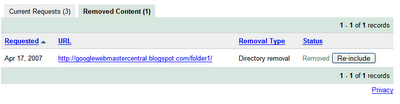
If a request is successful, it appears in the Removed Content tab and you can reinclude it any
time simply by removing the robots.txt or robots meta tag block and clicking Reinclude.
Otherwise, we’ll exclude the content for six months. After that six month period, if the content
is still blocked or returns a 404 or 410 status message and we’ve
recrawled the page, it won’t be reincluded in our index. However, if the page is available to our
crawlers after this six month period, we’ll once again include it in our index.
Requesting removal of content you don’t own

But what if you want to request removal of content that’s located on a site that you don’t own?
It’s just gotten easier to do that as well. Our new
Webpage removal request tool
steps through the process for each type of removal request.
Since Google indexes the web and doesn’t control the content on web pages, we generally can’t
remove results from our index unless the webmaster has blocked or modified the content or removed
the page. If you would like content removed, you can work with the site owner to do so, and then
use this tool to expedite the removal from our search results.
If you have found search results that contain specific types of personal information, you can
request removal even if you’ve been unable to work with the site owner. For this type of removal,
provide your email address so we can work with you directly.

If you have found search results that shouldn’t be returned with SafeSearch enabled, you can let
us know using this tool as well.

You can check on the status of pending requests, and as with the version available in Webmaster
Tools, the status will change to Removed or Denied once it’s been processed. Generally, the
request is denied if it doesn’t meet the eligibility criteria. For requests that involve personal
information, you won’t see the status available here, but will instead receive an email with more
information about next steps.
What about the existing URL removal tool?
If you’ve made previous requests with this tool, you can still log in to check on the status of
those requests. However, make any new requests with this new and improved version of the tool.
How we apply this
We archive Search Central announcements because client questions often trace back to a change that was announced years ago. Reading the original is faster than reconstructing it from second-hand summaries.
Related services