Mittwoch, 25. April 2012
Bei der Pflege einer Website beschließen Webmaster möglicherweise, die gesamte Website oder Teile davon an einen neuen Speicherort zu verlegen. Beispielsweise können Sie Inhalte von einem Unterverzeichnis in eine Subdomain oder auf eine völlig neue Domain verschieben. Das Ändern des Speicherorts Ihrer Inhalte kann etwas Aufwand erfordern, aber es lohnt sich, es richtig zu machen.

Damit Suchmaschinen Ihre neue Website-Struktur besser verstehen und Ihre Website benutzerfreundlicher wird, befolgen Sie unbedingt diese Richtlinien:
- Es ist wichtig, alle Nutzer und Bots, die Ihren alten Inhaltsort besuchen, mithilfe von
301Weiterleitungenan den neuen Inhaltsort weiterzuleiten. Um die Beziehung zwischen den beiden Standorten hervorzuheben, stellen Sie sicher, dass jede alte URL auf die neue URL verweist, die ähnliche Inhalte hostet. Wenn Sie keine301Weiterleitungen
verwenden können, möchten Sie stattdessen vielleicht
domainübergreifende Canonicals - für Suchmaschinen in Betracht ziehen.
Überprüfen Sie, ob sowohl der neue als auch der alte Speicherort im selben Google Webmaster Tools-Konto
verifiziert sind - .
Überprüfen Sie unbedingt mit der Funktion
Als Googlebot abrufen, ob der neue Speicherort von Googlebot gecrawltt werden kann. Es ist wichtig sicherzustellen, dass Google tatsächlich an dem neuen Speicherort auf Ihre Inhalte zugreifen kann. Stellen Sie außerdem sicher, dass die alten URLs nicht durch eine robots.txt-Disallow-Regel blockiert werden, damit die Weiterleitung oderrel=canonical - gefunden werden kann.
Wenn Sie Ihre Inhalte auf eine völlig neue Domain verschieben, verwenden Sie die Option
Adressänderung
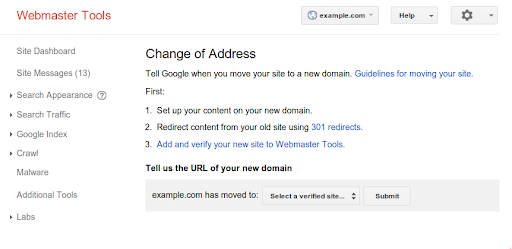
- unter Website-Konfiguration in Google Webmaster Tools, um uns über die Änderung zu informieren.
404Wenn Sie auch die URL-Struktur Ihrer Website geändert haben, stellen Sie sicher, dass die Navigation möglich ist, ohne aufFehlerseiten
zu stoßen. Google Webmaster Tools kann sich bei der Untersuchungpotenziell defekter Links
als nützlich erweisen. Suchen Sie einfach nach
Crawl-Fehlern - für Ihre neue Website. Überprüfen Sie Ihre Sitemap
- und vergewissern Sie sich, dass sie auf dem neuesten Stand ist.
301Sobald Sie IhreWeiterleitungen
404eingestellt haben, können Sie die Nutzer im Auge behalten, die auf Ihre
Fehlerseiten404gelangen, um zu überprüfen, ob Nutzer auf neue Seiten weitergeleitet werden und nicht versehentlich auf defekten URLs landen. Wenn ein Nutzer auf eine Fehlerseite auf Ihrer Website gelangt, versuchen Sie herauszufinden, auf welche URL er zugreifen wollte, warum dieser Nutzer nicht an den neuen Speicherort Ihrer Inhalte weitergeleitet wurde, und nehmen Sie dann entsprechende Änderungen an Ihren301Weiterleitungsregeln - vor.
Werfen Sie einen Blick auf die
Links zu Ihrer Website - in Google Webmaster Tools und informieren Sie die wichtigen Websites, die auf Ihre Inhalte verlinken, über Ihren neuen Standort.
Wenn die Inhalte Ihrer Website für eine bestimmte Region spezifisch sind, möchten Sie möglicherweise die
Geotargeting-Einstellungen - für Ihre neue Website-Struktur in Google Webmaster Tools überprüfen.
301Als Faustregel gilt: Vermeiden Sie es, zwei crawlbare Websites mit völlig oder größtenteils identischen Inhalten zu betreiben, ohne eine
Weiterleitung oder Angabe eines. - rel=”canonical”
vorzunehmen.
Schließlich empfehlen wir, beim Verschieben Ihrer Inhalte an einen neuen Speicherort keine anderen größeren Änderungen vorzunehmen, wie z. B. großflächige Inhalts-, URL-Struktur- oder Navigationsaktualisierungen. Wenn Sie zu viel auf einmal ändern, können Nutzer und Suchmaschinen verwirrt werden.
Wir hoffen, dass Sie diese Vorschläge nützlich finden. Wenn Sie weitere Fragen zum Verschieben Ihrer Inhalte an einen neuen Speicherort haben, möchten wir Sie ermutigen, in unserem
So setzen wir das um
Google announcements age. We keep this post here for the record, and we note for clients whether the behaviour it describes still applies today or has since been superseded.
Verwandte Leistungen