Aunque Google intenta entender automáticamente los detalles sobre tu video, puedes influir en la información que se muestra en los resultados de video, como la descripción, la URL de la miniatura, la fecha de subida y la duración, marcandotu video con VideoObject . Añadir datos estructurados de video a tus
páginas de visualización.

también puede facilitar que Google encuentre tu video. Los videos pueden aparecer en varios lugares diferentes en Google, incluyendo la página principal de resultados de búsqueda, el modo Video, Google Imágenes y
| Google Discover | |
|---|---|
Según cómo marques tu página de visualización, tus videos también pueden ser elegibles para las siguientes funciones de video específicas:Funciones de video
Videos de influencers Videojuegos en vivo Asegúrate de seguir las directrices de la insignia LIVE y utiliza la | 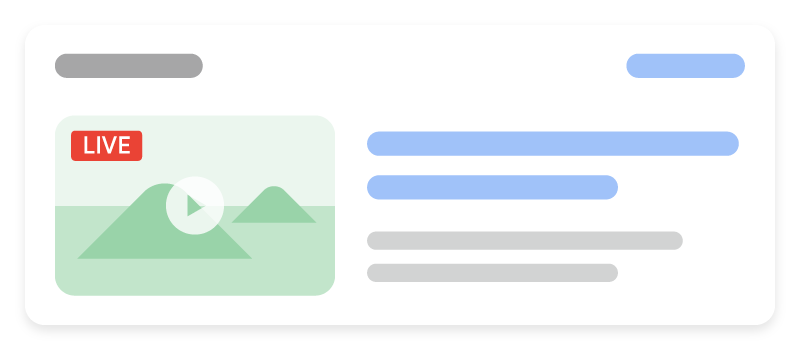 |
Indexing API para asegurarte de que Google rastree tu página en el momento adecuado.
. Esto es compatible en todos los idiomas donde está disponible la Búsqueda de Google. Si quieres habilitar los Capítulos de video en YouTube, sigue estas |  |
etiqueta
meta.
Cómo añadir datos estructurados.
Los datos estructurados son un formato estandarizado para proporcionar información sobre una página y clasificar el contenido de la página. Si eres nuevo en los datos estructurados, puedes aprender más sobre
- cómo funcionan los datos estructurados Aquí tienes una visión general de cómo construir, probar y publicar datos estructurados.Añade las propiedades requeridas.
- Aprende cómo generar datos estructurados con JavaScript.
- Sigue las
directrices
Valida tu código usando la - Prueba de resultados enriquecidos y corrige cualquier error crítico. Considera también corregir cualquier problema no crítico que pueda ser marcado en la herramienta, ya que pueden ayudar a mejorar la calidad de tus datos estructurados (sin embargo, esto no es necesario para ser elegible para resultados enriquecidos). Despliega algunas páginas que incluyan tus datos estructurados y utiliza la
herramienta de inspección de URLpara probar cómo ve Google la página. Asegúrate de que tu página sea accesible para Google y no esté bloqueada por un archivo robots.txt, la
etiqueta noindex. - Nota
: Permite tiempo para el re-rastreo y la re-indexación. Recuerda que puede tomar varios días después de publicar una página para que Google la encuentre y la rastree.Para mantener a Google informado de futuros cambios, recomendamos que
envíes un sitemap.
. Puedes automatizar esto con la
Search Console Sitemap API

Ejemplos Resultado de video estándar.
Cómo lo aplicamos
Video markup unlocks a surface most clients already have content for. Adding duration, thumbnail and upload date to existing video pages is one of the highest-return technical tasks we run.
Servicios relacionados