Vendredi 14 décembre 2007
La dernière version de
Google Toolbar pour Internet Explorer (bêta)
vient d’ajouter une fonctionnalité astucieuse pour aider les utilisateurs à accéder à votre site Web, ou du moins à voir votre contenu, même lorsque les choses tournent mal.

Il est frustrant pour vos utilisateurs de mal saisir votre URL et de recevoir un message générique
404 - Introuvable ou d’essayer d’accéder à une partie de votre site qui est peut-être en panne.
Indépendamment du fait que votre site soit
utile et riche en informations, lorsque ces problèmes surviennent, la plupart des utilisateurs passent simplement à autre chose. Cependant, la dernière version de Google Toolbar aide les utilisateurs en détectant les problèmes du site et en proposant des alternatives.
Site Optimizer ou Site Optimiser ? La barre d’outils peut vous aider à le trouver même si vous essayez “google.cmo” au lieu de “google.com”.
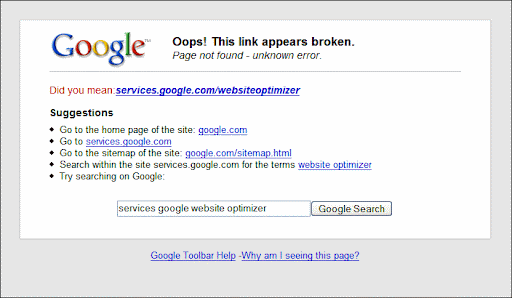
3 problèmes de site détectés par Google Toolbar
404erreurs avec les pages d’erreur par défaut: lorsqu’un visiteur essaie d’atteindre votre contenu avec une URL invalide et que votre serveur renvoie un message d’erreur court et par défaut (moins de 512 octets), la barre d’outils suggère une URL alternative au visiteur. S’il s’agit d’un problème général sur votre site Web, vous verrez également ces URL répertoriées dans la section des erreurs deexploration de votre compte Webmaster Tools.
Si vous choisissez de configurer une page d’erreur personnalisée, assurez-vous qu’elle renvoie le code de résultat404. Le contenu de la404page peut aider vos visiteurs à comprendre qu’ils ont essayé d’atteindre une page manquante et propose des suggestions sur la façon de trouver le contenu qu’ils cherchaient. Lorsqu’un site affiche une page d’erreur personnalisée, la barre d’outils ne fournit plus de suggestions pour ce site. Vous pouvez vérifier le comportement de la barre d’outils en visitant une URL invalide sur votre site avec Google Toolbar installé.- Erreurs DNS: lorsqu’une URL contient un nom de domaine inexistant (comme www.google.cmo), la barre d’outils suggère une URL alternative d’apparence similaire avec un nom de domaine valide.
- Échecs de connexion: lorsque votre serveur est inaccessible, Google Toolbar affiche automatiquement un lien vers la version en cache de votre page. Cette fonctionnalité n’est disponible que lorsque Google n’est pas explicitement empêché de mettre vos pages en cache par l’utilisation d’un
robotsmetabalise
ou que l’exploration est bloquée sur la page via le fichier
robots.txt. Si votre serveur est régulièrement inaccessible, vous voudrez probablement résoudre ce problème en premier ; mais c’est aussi une bonne idée de vérifier le cache Google pour vos pages en consultant les résultats de recherche pour votre site.
Suggestions fournies par Google Toolbar
Lorsqu’une des situations ci-dessus est détectée, la barre d’outils essaiera de trouver les liens les plus utiles pour l’utilisateur. Ceux-ci peuvent inclure :
- Un lien vers l’URL corrigée: lorsque la barre d’outils peut trouver l’URL active la plus probable correspondant à la saisie de l’utilisateur (sur laquelle il a cliqué), elle l’affichera tout en haut comme suggestion. La correction peut se trouver dans le nom de domaine, le chemin d’accès ou le nom de fichier (la barre d’outils n’examine aucun paramètre dans l’URL).
- Un lien vers la version en cache de l’URL: lorsque la barre d’outils reconnaît l’URL dans le cache Google, elle affiche un lien vers la version en cache. Ceci est particulièrement utile lorsque l’utilisateur ne peut pas accéder à vos pages pour une raison quelconque. Comme mentionné ci-dessus, Google peut mettre vos URL en cache à condition que vous ne l’interdisiez pas explicitement en utilisant un
robotsmetabalise ou le fichier
robots.txt. - .Un lien vers la page d’accueil ou le plan du site HTML de votre site
: parfois, aller à la page d’accueil ou à une page de plan du site HTML est le meilleur moyen de trouver la page que l’utilisateur recherche réellement. Les pages de plan du site HTML (ce ne sont pasfichiers XML Sitemap - ) sont généralement reconnues en fonction du nom de fichier ; si la barre d’outils peut trouver quelque chose appelé “sitemap” ou similaire, cette page sera probablement reconnue comme la page de plan du site HTML. Ne vous inquiétez pas si votre page de plan du site HTML a un autre nom ; si un utilisateur décide d’aller sur votre page d’accueil, il la trouvera probablement tout de suite, même si la barre d’outils ne la repère pas.Un lien vers un dossier de niveau supérieur
- : parfois, la page d’accueil ou la page de plan du site HTML sont trop éloignées et l’utilisateur ferait mieux de remonter d’un cran dans la hiérarchie. Lorsque la barre d’outils peut reconnaître que la structure de votre site est basée sur des dossiers et des sous-dossiers, elle peut suggérer une page en arrière.Une recherche dans votre site de mots-clés trouvés dans l’URL
: c'est une bonne pratique d'utiliser des URL descriptives. Si la barre d'outils peut reconnaître des mots-clés dans l'URL à laquelle l'utilisateur a tenté d'accéder, elle renverra vers une recherche sur le site avec ces mots-clés. Même si l'URL a changé de manière significative entre-temps, la recherche pourra peut-être trouver un contenu similaire basé sur ces mots-clés. Par exemple, si l'URL était
https://example.com/party-gifts/holidays/elle suggérera une recherche pour les mots ““,
“partygifts” et “holidays
" dans le site. - example.comUne boîte de recherche Google ouverte
: si tout le reste échoue, il y a toujours une chance qu’un contenu similaire existe déjà ailleurs sur le Web. La recherche Web Google peut aider vos utilisateurs à le trouver – la barre d’outils vous aidera en ajoutant les mots-clés trouvés dans l’URL dans la boîte de recherche.
Êtes-vous déjà curieux ?
Téléchargez Google Toolbar
pour votre navigateur et essayez-le sur votre site !
Pour discuter de la façon dont cette fonctionnalité peut aider les visiteurs de votre site, rejoignez notregroupe d’aide Google Webmasters
; ou pour des questions générales sur Google Toolbar, essayez le
groupe Toolbar pour Internet Explorer
ou le.
Comment nous l'appliquons
We archive Search Central announcements because client questions often trace back to a change that was announced years ago. Reading the original is faster than reconstructing it from second-hand summaries.
Services associés