Понедельник, 05 февраля 2007 г.
Вы просили — мы услышали: мы расширили поддержку запросов ссылок на ваш сайт далеко за пределы оператора
link: , который
вы могли использовать в прошлом. Теперь вы можете использовать
Webmaster Tools
, чтобы просмотреть гораздо большую выборку ссылок на страницы вашего сайта, которые мы нашли в интернете. В отличие от оператора
link: , эти данные гораздо более полные, их можно классифицировать, фильтровать и скачивать. Все, что вам нужно сделать, это подтвердить права на сайт, чтобы увидеть эту информацию.
Чтобы сделать эти данные еще более полезными, мы разделили мир ссылок на два типа: внешние и внутренние. Давайте разберемся, какие ссылки к какому типу относятся.
Что такое внешние ссылки?
Внешние ссылки на ваш сайт — это ссылки, которые находятся на страницах, не принадлежащих вашему домену. Например, если вы просматриваете ссылки для
https://www.google.com/, все ссылки, которые не исходят со страниц какого-либо поддомена google.com, будут отображаться как внешние ссылки на ваш сайт.
Что такое внутренние ссылки?
Внутренние ссылки на ваш сайт — это ссылки, которые находятся на страницах, принадлежащих вашему домену. Например, если вы просматриваете ссылки для
https://www.google.com/, все ссылки, исходящие со страниц любого поддомена google.com, такие как
https://www.google.com/ или
mobile.google.com, будут отображаться как внутренние ссылки на ваш сайт.
Просмотр ссылок на страницу вашего сайта
Вы можете просмотреть ссылки на свой сайт, выбрав подтвержденный сайт в своем аккаунте Webmaster Tools и нажав на новую вкладку Ссылки вверху. Оказавшись там, вы увидите два варианта слева: внешние ссылки и внутренние ссылки (выбран просмотр внешних ссылок). Вы также увидите таблицу со списком страниц вашего сайта, как показано ниже. В первом столбце таблицы перечислены страницы вашего сайта со ссылками на них, а во втором столбце показано количество внешних ссылок на эту страницу, которые мы можем вам показать. (Обратите внимание, что это может быть не 100% внешних ссылок на эту страницу.)

Эта таблица также предоставляет общее количество внешних ссылок на ваш сайт, которые мы можем вам показать. Находясь в этом сводном представлении, нажмите на число-ссылку и перейдите к подробному списку ссылок на эту страницу. В подробном представлении вы увидите список всех страниц, которые ссылаются на конкретную страницу вашего сайта, и время нашего последнего сканирования этой ссылки. Поскольку вы находитесь на вкладке «Внешние ссылки» слева, этот список представляет собой внешние страницы, указывающие на данную страницу.

Поиск ссылок на конкретную страницу вашего сайта
Чтобы найти ссылки на конкретную страницу вашего сайта, вам сначала нужно найти эту конкретную страницу в сводном представлении. Вы можете сделать это, перемещаясь по таблице, или, если вы хотите найти эту страницу быстро, вы можете использовать удобную ссылку Найти страницу в верхней части таблицы. Просто заполните URL-адрес и нажмите «Посмотреть детали». Например, если искомая страница имеет URL-адрес
https://www.google.com/?main, вы можете ввести ?main в форму Найти страницу . Это приведет вас прямо к подробному представлению ссылок на
https://www.google.com/?main.

Просмотр внутренних ссылок
Чтобы просмотреть внутренние ссылки на страницы вашего сайта, нажмите на вкладку Внутренние ссылки на левой боковой панели в представлении. Это приведет вас к сводной таблице, которая, точно так же как и представление внешних ссылок, отображает информацию о страницах вашего сайта с внутренними ссылками на них.

Однако это представление также предоставляет вам возможность дополнительно отфильтровать данные: просмотреть ссылки с любого поддомена на домене или ссылки только с того конкретного поддомена, который вы просматриваете в данный момент. Например, если вы сейчас просматриваете внутренние ссылки на https://www.google.com/, вы можете либо просмотреть ссылки со всех поддоменов, такие как ссылки с
https://mobile.google.com/ и https://www.google.com, либо просмотреть ссылки только с других страниц на
https://www.google.com.
Скачивание данных о ссылках
Существует три разных способа скачать данные о ссылках на ваш сайт. Первый: скачайте текущее представление видимой таблицы, что позволяет вам перейти к любой сводной таблице или таблице с подробностями и скачать данные в текущем представлении. Второй, и, пожалуй, самый полезный набор данных — это список всех внешних ссылок на ваш сайт. Это позволяет скачать список всех ссылок, указывающих на ваш сайт, а также информацию о странице, на которую они указывают, и время нашего последнего сканирования этой ссылки. В-третьих, мы предоставляем аналогичную загрузку для всех внутренних ссылок на ваш сайт.
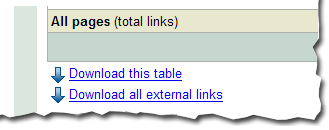
Мы действительно ограничиваем объем данных, которые вы можете скачать для каждого типа ссылок (например, в настоящее время вы можете скачать до одного миллиона внешних ссылок). Google знает о большем количестве ссылок, чем то общее число, которое мы показываем, но общая доля отображаемых нами ссылок намного, намного больше того, что в настоящее время предлагает команда
link: . Почему бы вам не заглянуть к нам в
Webmaster Central
и не изучить ссылки для вашего сайта? Найдите свои ссылки | Alien Road, Вы просили — мы услышали: мы расширили поддержку запросов ссылок на ваш сайт далеко за пределы оператора link:, который вы могли использовать в прошлом.
Как мы это применяем
Google announcements age. We keep this post here for the record, and we note for clients whether the behaviour it describes still applies today or has since been superseded.
Связанные услуги