Vendredi 6 août 2010
Des changements peuvent se produire — parfois, comme nous l’avons vu dans notre
article précédent sur les suppressions d’URL, vous pouvez bloquer ou supprimer complètement une page de votre site. D’autres fois, vous pouvez simplement modifier des parties d’une page ou supprimer certains éléments de texte. Selon la fréquence d’exploration d’une page, un certain temps peut s’écouler avant que ces modifications ne soient reflétées dans nos résultats de recherche. Dans cet article de blog, nous examinerons les mesures que vous pouvez prendre si nous affichons toujours du contenu ancien et supprimé dans nos résultats de recherche, que ce soit sous la forme d’un « extrait » (snippet) ou sur la page en cache liée depuis le résultat de recherche. Il est logique de faire cela lorsque l’ancien contenu contient des informations sensibles qui doivent être supprimées rapidement — il n’est pas nécessaire de le faire lorsque vous mettez simplement à jour un site Web normalement.

À titre d’exemple, examinons le résultat de recherche fictif suivant :
| Walter E. Coyote | < Title |
Chief Development Officer at Acme Corp 1948-2003: worked on the top | < Snippet |
| www.example.com/about/waltercoyote – Cached | < URL + link to cached page |
Pour modifier le contenu affiché dans l’extrait (ou sur la page en cache liée),
vous devez d’abord modifier le contenu sur la page réelle (en direct). À moins que le contenu visible publiquement d’une page ne soit modifié, les processus automatiques de Google continueront d’afficher des parties du contenu d’origine dans nos résultats de recherche.
Une fois le contenu de la page modifié, plusieurs options s’offrent à vous pour rendre ces modifications visibles dans nos résultats de recherche :
Attendez que Googlebot réexplore et réindexe la page: c’est la méthode naturelle par laquelle la plupart du contenu est mis à jour chez Google. Parfois, cela peut prendre pas mal de temps, selon la fréquence à laquelle Googlebot explore actuellement la page en question. Une fois que nous aurons réexploré et réindexé la page, l’ancien contenu ne sera généralement plus visible car il sera remplacé par le contenu actuel. À condition que Googlebot ne soit pas bloqué lors de l’exploration de la page en question (soit par robots.txt, soit en ne pouvant pas accéder correctement au serveur), vous n’avez rien de spécial à faire pour que cela se produise. Il n’est généralement pas possible d’accélérer l’exploration et l’indexation, car ces processus sont entièrement automatisés et dépendent de nombreux facteurs externes.
Utilisez
l’outil public de suppression d’URL de Google
pour demander la suppression de contenu qui a été supprimé de la page Web de quelqu’un d’autre. À l’aide de cet outil, il est nécessaire de saisir
l’URL exacte de la page
qui a été modifiée, de sélectionner l’option « Le contenu a été supprimé de la page », puis de spécifier un ou plusieurs mots qui ont été complètement supprimés de cette page.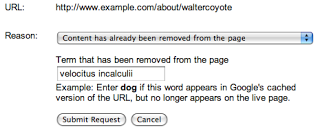
Notez que aucun des mots que vous saisissez ne peut apparaître sur la page ; même si un mot a d’une partie de la page, votre demande sera rejetée si ce mot apparaît toujours sur une autre partie de la page. Assurez-vous de choisir un mot (ou des mots) qui n’apparaît plus
nulle part sur la page. Si, dans l’exemple ci-dessus, vous avez supprimé“top secret velocitus incalculii capturing device”, vous devez soumettre ces mots et non quelque chose comme « mon projet ». Cependant, si le mot“top”ou“device”existe toujours n’importe où sur la page, la demande serait rejetée. Pour maximiser vos chances de succès, il est souvent plus simple de saisir simplement un mot dont vous êtes sûr qu’il n’apparaît plus nulle part sur la page.Une fois que votre demande a été traitée et qu’il a été constaté que le ou les mots soumis n’apparaissent plus sur la page, le résultat de recherche n’affichera plus d’extrait, et la page en cache ne sera plus disponible. Le titre et l’URL de la page seront toujours visibles, et l’entrée peut toujours apparaître dans les résultats de recherche pour les recherches liées au contenu qui a été supprimé (telles que les recherches pour
velocitus incalculii), même si ces mots n’apparaissent plus dans l’extrait. Cependant, une fois que la page a été réexplorée et réindexée, le nouveau extrait et la page en cache peuvent être visibles dans nos résultats de recherche.Gardez à l’esprit que nous devrons vérifier la suppression du ou des mots en consultant la page. Si la page n’existe plus et que le serveur renvoie un
404ou410code de résultat HTTPapproprié,
ce qui nous empêche de voir la page, vous feriez peut-être mieux de
demander la suppression complète de la page- .
Utilisez l’outil de suppression d’URL de Google Webmaster Tools pourdemander la suppression d’informations sur une page de votre site Web
. Si vous avez accès au site Web en question et que vous en avez vérifié la propriété dansGoogle Webmaster Tools
, vous pouvez y utiliser l’outil de suppression d’URL (sous > Configuration du siteAccès aux robots explorateurs
) pour demander la suppression de l’extrait et de la page en cache jusqu’à ce que la page ait été réexplorée. Pour utiliser cet outil, il vous suffit de soumettre
l’URL exacte de la page

(vous n’aurez pas besoin de spécifier de mots supprimés). Une fois votre demande traitée, nous supprimerons l’extrait et la page en cache des résultats de recherche. Le titre et l’URL de la page seront toujours visibles, et la page pourra également continuer à être positionnée dans les résultats de recherche pour les requêtes liées au contenu qui a été supprimé. Une fois la page réexplorée et réindexée, le résultat de recherche avec un extrait mis à jour et une page en cache (basée sur le nouveau contenu) pourra être visible.
Google indexe et classe les éléments non seulement en fonction du contenu d’une page, mais aussi d’autres facteurs externes, tels que les liens entrants vers l’URL. Pour cette raison, il est possible qu’une URL continue d’apparaître dans les résultats de recherche pour du contenu qui n’existe plus sur la page, même après que la page a été réexplorée et réindexée. Bien que l’outil de suppression d’URL puisse supprimer l’extrait et la page en cache d’un résultat de recherche, il ne modifiera ni ne supprimera le titre du résultat de recherche, ne modifiera pas l’URL affichée et n’empêchera pas la page d’être affichée pour des recherches basées sur un contenu actuel ou antérieur. Si cela est important pour vous, vous devez vous assurer que l’URL remplit les conditions requises pour une.
suppression complète de nos résultats de recherche
. 404 Suppression de contenu non HTML
Si le contenu modifié n’est pas au format (X)HTML (par exemple, si une image, un fichier Flash ou un fichier PDF a été modifié), vous ne pourrez pas utiliser l’outil de suppression de cache. Par conséquent, s’il est important que l’ancien contenu ne soit plus visible dans les résultats de recherche, la solution la plus rapide serait de modifier l’URL du fichier afin que l’ancienne URL renvoie uncode de résultat HTTP et d’utiliser l’outil de suppression d’URL pour supprimer l’ancienne URL
. Sinon, si vous choisissez de permettre à Google de réinitialiser naturellement vos informations, sachez que les aperçus de contenu non HTML (tels que
les liens Aperçu rapide pour les fichiers PDF
) peuvent prendre plus de temps à se mettre à jour après une réexploration que les pages HTML normales. Prévention proactive de l’affichage d’extraits ou de versions en cache
En tant que webmaster, vous avez la possibilité d’utiliser les
méta balises
robotspour empêcher de manière proactive l’affichage d’extraits ou de versions en cache sans utiliser nos outils de suppression. Bien que nous ne recommandions pas cela comme approche par défaut (l’extrait peut aider les utilisateurs à reconnaître plus rapidement un résultat de recherche pertinent, et une page en cache leur permet de consulter votre contenu même dans le cas imprévu où votre serveur ne serait pas disponible), vous pouvez utiliser la méta balise robots « nosnippet » pour
empêcher l’affichage d’un extrait
, ou la méta balise robots « noarchive » pour désactiver la mise en cache d’une page. Notez que si cela est modifié sur des pages existantes et connues, Googlebot devra réexplorer et réindexer ces pages avant que cette modification ne devienne visible dans les résultats de recherche. Nous espérons que cet article de blog contribuera à rendre certains des processus sous-tendant l’outil de suppression d’URL pour les pages mises à jour un peu plus clairs. Dans notre prochain article de blog, nous examinerons les moyens de demander la suppression de contenu que vous ne possédez pas ; restez à l’écoute ! Comme toujours, nous attendons vos commentaires et vos questions avec impatience dans notre
Forum d’aide pour webmasters.
Autres articles de cette série
- Partie I : Suppression d’URL et de répertoires
- Partie II : Suppression et mise à jour du contenu en cache
- Partie III : Suppression de contenu qui ne vous appartient pas
- Partie IV : Suivi des demandes, ce qu’il ne faut pas supprimer
Enfin, vous pourriez également être intéressé par la lecture de
la gestion des informations disponibles à votre sujet en ligne.
Comment nous l'appliquons
We archive Search Central announcements because client questions often trace back to a change that was announced years ago. Reading the original is faster than reconstructing it from second-hand summaries.
Services associés